How to Set Up a Mesh WiFi System Step by Step
To set up a mesh WiFi system, connect its main unit to your modem, then use the system’s app to add satellites and test coverage. Place each satellite where it can still get a strong signal from the main unit or another node.
On this page (8 sections)
- What do you need before setting up mesh WiFi?
- How do you connect the main mesh unit?
- How do you add mesh satellites?
- Where should you put each mesh unit?
- How do you check that the setup works?
- What should you do if mesh setup fails?
- How do you choose the right mesh kit for setup?
- What is the simplest setup plan?
To set up a mesh WiFi system, connect its main unit to your modem, follow the app to add satellites, and check the connection in the rooms you use. The key is satellite placement: each unit needs a solid link back to the main unit or another node.
Before you unplug anything, note how your current internet equipment is connected. If you’re unsure whether the mesh system replaces your router or works with it, read how mesh WiFi relates to your router.
What do you need before setting up mesh WiFi?
You need an active internet connection, the mesh system’s units, its app or setup instructions, and a phone or tablet for setup. Keep your provider’s modem or gateway details nearby in case the system asks for them.
Check the box for the main unit, satellites, power adapters and Ethernet cable. Some kits include a cable, but you can use another compatible Ethernet cable if needed.
Decide where you can place the main unit near the modem and where you want better coverage. A mesh kit with more units does not guarantee better WiFi if the satellites sit too far from one another.
If your provider gave you a combined modem and router, don’t change its settings yet. Follow the mesh manufacturer’s instructions for connecting to a gateway, including whether to use bridge or access point mode.
How do you connect the main mesh unit?
Connect the main mesh unit to the modem or gateway with Ethernet, then plug in its power adapter. Use the port and sequence shown in the system’s setup instructions, since the available ports and startup steps vary by model.
- Leave the modem or gateway on and connected to your internet service.
- Connect an Ethernet cable from the modem or gateway to the mesh unit’s internet or WAN port.
- Plug the mesh unit into power.
- Wait for its status light or app to show that it’s ready.
- Open the app and follow the on-screen steps to create your network.
The app may ask you to name your WiFi network and set a password. Use a password you can enter on your devices, and save it in a secure place.
If your internet service uses a gateway with its own WiFi, the setup may offer an access point mode or instructions to disable the gateway’s WiFi. Choose the mode recommended for your equipment rather than changing settings at random.
How do you add mesh satellites?
Add each satellite through the system’s app while it is near the main unit, then move it to its planned location after setup. Pairing nearby first can help the app confirm that the new unit has joined the network.
Plug in one satellite at a time and follow the app’s instructions. Wait for each unit to show a good connection before adding the next.
After pairing, put satellites in open spaces between the main unit and the rooms with weak coverage. A satellite placed inside a dead zone may not receive a strong enough signal to extend.
For a room-by-room placement plan, see where to place mesh WiFi units. If you’re deciding whether to connect units with Ethernet, our guide to wired mesh WiFi explains when a cable can help.
Where should you put each mesh unit?
Place the main unit near the modem, then position satellites partway toward the rooms that need better coverage. Keep units in open areas and avoid walls, cabinets and large obstructions where possible.
A satellite needs a useful connection to the main unit or another node. It should not sit at the far end of a weak-signal room and be expected to fix the signal there.
Start with one satellite in a central spot between the main unit and the problem area. Check its connection in the app, then move it a little at a time if the signal is weak.
Try a hallway or open landing before placing a satellite inside a closed room. For a multistory home, a landing or stair area may help connect floors, but test the result because walls and floor materials affect signal.
How do you check that the setup works?
Check the app for unit status, then use your phone or laptop in the rooms where you need WiFi. Test in the actual spots that matter, such as a home office, bedroom or patio door, instead of relying only on the app’s coverage map.
Walk between the main unit and satellites while staying on a video call or streaming audio. Devices should remain connected as you move, although the handoff may not be instant on every phone or computer.
Run a speed test near the main unit and in a far room, using the same device and test method. Internet speed can vary with your plan, device, WiFi conditions and time of day, so use the comparison to spot weak areas rather than expect identical results everywhere.
If a room still has a weak connection, first move the nearest satellite closer to the main unit. If that doesn’t help, try a different open spot or add a compatible unit if the system supports expansion.
What should you do if mesh setup fails?
Check the cable, power and app status first. A loose Ethernet connection or a satellite outside the network’s reach can stop setup or leave one area without usable coverage.
- Confirm the modem or gateway has an internet connection.
- Check that the Ethernet cable runs from the modem or gateway to the mesh unit’s correct port.
- Restart the modem or gateway and mesh units in the order recommended by their manufacturers.
- Move a satellite closer to the main unit and try pairing again.
- Check whether the app needs a software update or a new setup step.
If the main unit connects but the satellite does not, bring it into the same room as the main unit during pairing. Once it joins, move it to its intended place and recheck the app.
If you still can’t get online, contact your internet provider about the modem or service connection, or the mesh maker about its app and hardware. Keep the exact error message handy.
How do you choose the right mesh kit for setup?
Choose a kit based on your layout, the number of units you need and how you plan to connect them. Coverage figures are estimates, and the actual signal depends on placement, construction materials and the shape of your home.
The eero 7 two-pack is one option for a setup with a main unit and one satellite. eero says the pair supports 120+ devices and coverage up to 4,000 sq. ft.
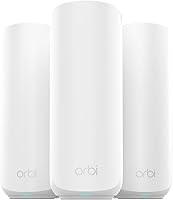
The Netgear Orbi 370 two-pack also includes a router and satellite. NETGEAR says its system covers up to 4,000 sq. ft. and supports plans up to 2.5 Gbps.
The ASUS ZenWiFi BD4 comes as a three-pack. ASUS says the set can cover up to 6,500 sq. ft., and compatible ASUS routers can extend its AiMesh network.
Check that the kit works with your internet provider’s equipment and meets your needs for device capacity and wired connections. If your internet comes from a fiber service or Starlink, see our guides to mesh systems for fiber internet and mesh WiFi for Starlink.
What is the simplest setup plan?
Connect one main unit to your modem, complete app setup, and add satellites one at a time. Place satellites where the app shows a good connection, then test WiFi in the rooms you care about.
If the app reports a weak link, move the satellite closer before adding another unit. For a system that supports Ethernet backhaul, a wired connection can give units a direct path to one another.
Choose a two-pack when one satellite can cover the trouble area, or consider a three-pack when the layout needs another placement point. Before buying, compare the planned setup with how many mesh nodes your home may need.
Frequently asked questions
Do I need to turn off my old router when setting up mesh WiFi?
It depends on how your mesh system connects to your internet equipment. If the mesh system replaces your router, follow its app instructions for connecting it to the modem and handling the old router.
If it works with your existing router, check whether the system supports access point mode to avoid running two routers.
Where should I put the main mesh WiFi unit?
Put the main unit near your modem and in an open, central spot if the cable reach allows. Avoid hiding it in a cabinet or placing it on the floor behind furniture.
The modem connection determines where the main unit can go, so plan satellite locations around that starting point.
How do I know if my mesh WiFi setup is working?
Check the app for the system’s connection status, then test WiFi in rooms where you need coverage. Try a video call or another normal activity while moving between areas.
If a satellite reports a weak connection, move it closer to the main unit or another node and check again.
Can I set up mesh WiFi without a modem?
Most mesh systems need an internet connection from a modem or another compatible provider device. Some internet services use a gateway that combines modem and router functions, so connect the mesh system according to that provider’s instructions.
See whether your mesh system needs a modem before setup.