Why Does My Mesh WiFi Keep Disconnecting?
Your mesh WiFi keeps disconnecting because a node has lost its link to the main router, or because one band is overloaded. Most drops trace to node placement, firmware or too many devices, not to a broken system.
On this page (9 sections)
- Why does my mesh wifi keep disconnecting when the nodes are far apart?
- Which placement mistakes cause mesh WiFi drops?
- Why does my mesh wifi keep disconnecting only on some devices?
- How do I fix mesh WiFi disconnects caused by too many devices?
- Should you use a wired backhaul to stop disconnects?
- Why does my mesh wifi keep disconnecting after a firmware update?
- What settings should you check when disconnects continue?
- Which mesh system should you buy if disconnects keep happening?
- What should you try first when mesh WiFi keeps dropping?
Your mesh WiFi keeps disconnecting because a node has lost its link to the main router, or one band is carrying more devices than it can handle. Most drops come from node placement, old firmware or device load, not from a faulty system.
The fix is usually one of a few checks. This guide walks through them in order, so you can stop guessing and find the cause that applies to your home.
Why does my mesh wifi keep disconnecting when the nodes are far apart?
Distance is the first suspect. Each node needs a strong wireless link back to the main router, and that link weakens quickly through walls and floors.
If the secondary node sits at the far end of the house with two walls between it and the router, it may hold on at the edge of usable signal. Phones then see a node that is technically present but too weak to stay connected.
Move the node closer to the router and recheck. A good rule is to place it about halfway between the router and the dead zone it is meant to cover.
You lose a little reach but gain a stable link.
Thick brick, concrete and foil-backed insulation hurt more than drywall. A node in a garage or a metal cabinet can drop even when it is close to the router.
Bring it into the open and test again.
If drops disappear after moving one node, the system was fine and the layout was not. That is the most common outcome.
Which placement mistakes cause mesh WiFi drops?
Cabinets, shelves and floors are the usual culprits. Nodes work best when they sit in the open and off the floor.
Avoid tucking a node behind a TV or inside a media console. The screen and the cabinet both block the signal the node needs for its backhaul.
A node next to a microwave or a cordless phone base also suffers, because those devices add noise on the 2.4 GHz band.
Keep nodes away from fish tanks and large metal objects. Water absorbs signal, and metal reflects it.
A node placed next to a steel appliance can lose its link when the appliance runs.
Point the antennas upright if your nodes have them. Many mesh units use internal antennas, so all you can do is keep the unit clear and give it air.
Finally, do not stack nodes on top of each other. Two units in the same room add interference without adding coverage.
Spread them through the home.
Why does my mesh wifi keep disconnecting only on some devices?
Some devices drop because they hold an old connection too long. Phones and laptops often cling to the node they first joined, even after you have moved to another room.
Mesh systems try to steer devices to the nearest node, and many handle this well. Older phones and budget smart plugs are less good at letting go.
They stay stuck on a distant node and time out.
Turning WiFi off and on again on the device usually forces a fresh join. If that fixes it every time, roaming is the cause, not the network.
Smart home gear is a frequent offender. Lights, plugs and cameras often sit on the 2.4 GHz band and only support older WiFi standards.
A large batch of them on one node can crowd that band.
Put phones and laptops on 5 GHz where the signal is good. Leave smart home devices on 2.4 GHz, because they need the longer range more than the speed.
How do I fix mesh WiFi disconnects caused by too many devices?
Check your device count against what the system supports. A three-unit mesh kit may handle 120 devices or more, but a single node still has its own limit.
The eero 7 system lists support for 120+ devices across three units and 6,000 sq. ft. of coverage. That is a reasonable figure for a family home with phones, TVs and smart gear.
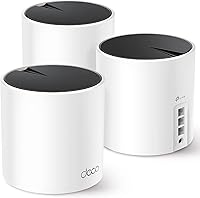
The TP-Link Deco X55 3-pack lists support for up to 150 devices and 6,500 sq. ft. of coverage.
Count what you actually run. Streaming sticks, game consoles, cameras and smart speakers all add up.
If you sit near the top of the range, spread devices across nodes by moving the nodes closer to where those devices live.
Also check for devices that reconnect constantly. A faulty smart plug or an old printer can spam the network with join requests and cause visible drops on other devices.
Unplug suspect gear for a day and see whether the drops stop.
Should you use a wired backhaul to stop disconnects?
A wired backhaul is the most reliable fix for repeated drops. If you can run an Ethernet cable from the main router to a node, the node stops relying on a wireless link.
The TP-Link Deco X55 lists support for wired Ethernet backhaul and gives each unit 3 Gigabit Ethernet ports. That means you can wire the nodes together and still plug a TV or console into the spare ports.
Whether your home is set up for it is another matter, and our guide to whether mesh WiFi needs to be wired covers the options.
If cable runs are not practical, consider a powerline kit for the room that drops most often. The Netgear PLP2000 uses existing electrical wiring to carry an Ethernet connection and lists speeds up to 2000 Mbps.
It is not a WiFi device, so it does not extend wireless coverage; it just gives a node or a single device a wired path.
Wired backhaul fixes the link between nodes. It does not fix a weak internet feed from your provider, so check the modem lights during a drop before you buy cable.
Why does my mesh wifi keep disconnecting after a firmware update?
A failed or partial update can leave one node out of step with the rest. When nodes run different firmware versions, roaming and backhaul handoffs get less reliable.
Most mesh apps update all nodes at once. If one node was offline during the update, it may still be on the old build.
Open the app and check the version on each node, then update the one that is behind.
A power cut during an update can also leave a node stuck. A full reboot, unplugging every unit for 30 seconds and starting the main router first, often clears it.
After the reboot, give the system 10 to 15 minutes to settle before you judge it. Nodes re-form their links and run channel scans during that time.
Testing during the scan can show drops that would not happen once it finishes.
Set a reminder to check for updates monthly. A system that dropped every day often settles once all nodes share the same build.
What settings should you check when disconnects continue?
Look at band steering and channel settings next. These two settings cause more avoidable drops than most people expect.
Band steering pushes devices between 2.4 GHz and 5 GHz. When it is aggressive, some devices get bumped and fail to reconnect cleanly.
If your app offers a steering sensitivity control, set it lower and see whether the drops stop.
Channel selection matters in apartments and dense streets. An auto setting usually works, but a node sitting on a crowded channel will drop more.
Run a channel scan in the app and move to a clearer one if the option exists.
Guest network and IoT network features are worth using. Putting smart home devices on a separate network keeps their chatter off the band your phone uses.
The TP-Link Deco app includes parental controls and basic network security through HomeShield, and the eero app offers optional eero Plus features like ad blocking and parental controls.
Change one setting at a time. If you change three at once and the drops stop, you will not know which one fixed it.
Which mesh system should you buy if disconnects keep happening?
Buy a system with strong backhaul and a clear device limit if your current kit keeps dropping. Placement and firmware fix most problems, but old hardware with a low device ceiling is worth replacing.
The TP-Link Deco X55 AX3000 WiFi 6 Mesh scores 9.6 in our comparison. It covers up to 6,500 sq. ft. with three units, lists support for up to 150 devices and supports wired Ethernet backhaul.
For a busy home where the node link is the weak point, that combination is the practical pick.
The eero 7 (3-pack) scores 9. It adds WiFi 7 with multi-link operation and covers up to 6,000 sq. ft. across three units.
If you have a 2.5 Gbps internet plan and want a system that will last, it is the better fit; if you just need stable coverage at a lower tier, the Deco X55 does the job.
Before you buy, size the system to your home. Our guide to what WiFi mesh system you need walks through coverage and device counts.
And if you are still unsure whether a mesh kit replaces your router or sits alongside it, read does mesh WiFi replace your router.
What should you try first when mesh WiFi keeps dropping?
Start with the cheapest checks. Move a weak node closer to the router, reboot every unit, and confirm all nodes run the same firmware.
Those three steps clear most cases of mesh WiFi that keeps disconnecting.
If drops persist, wire a node with Ethernet, or add a powerline adapter where cable is not possible. Then look at device load and band steering settings.
Replace the system only when the hardware ceiling is the real limit. A 9.6-scoring Deco X55 suits a busy family home, while the eero 7 3-pack fits a household moving to WiFi 7.
One more check before you spend: a slow system is not the same as a dropping one, so read does mesh WiFi slow down speed to separate the two problems.
Frequently asked questions
How often should I update mesh WiFi firmware?
Check for updates about once a month and install them when you can be offline for a few minutes. Most mesh apps update all nodes together, and a stale firmware build on one node is a common cause of repeated drops.
Does a mesh node need line of sight to the router?
No, but fewer walls between them means a stronger backhaul link. A node placed behind a brick wall or inside a cabinet will drop its connection more often, so move it into the open before you blame the hardware.
Can too many smart home devices cause disconnects?
Yes. A busy 2.4 GHz band shared by lights, plugs and cameras can push older devices off.
Put as many phones and laptops as you can on the 5 GHz band and keep smart home gear on 2.4 GHz.
Should I reboot my mesh system when it disconnects?
A full reboot fixes most one-off drops, so unplug every node for 30 seconds and start the main router first. If drops return within a day or two, the cause is placement, firmware or device load rather than a glitch.
Is my internet provider to blame for mesh disconnects?
Sometimes. If the main router drops its own connection while your phone still sees the mesh network, the problem is upstream.
Check whether your modem lights stay solid during a drop before you change router settings.