What WiFi Mesh System Do I Need?
The mesh system you need depends on three things: your internet plan speed, how many devices share the network and how much floor space the signal has to cover. Most homes do well with a Wi-Fi 6 or Wi-Fi 7 mesh kit rated above their plan and their square footage.
On this page (8 sections)
- What do you actually need a mesh system for?
- How does your internet plan set the floor?
- How much coverage does your floor plan need?
- Which mesh system fits your home network need?
- Should you choose Wi-Fi 6, 6E or 7?
- Do you need a modem or wired backhaul?
- How do you match a kit to your device count?
- Which mesh kit would we pick for each need?
A mesh system replaces your single router with two or more units that share one network name. The right kit for your home matches your internet speed, your device count and your floor plan.
Answer those three questions first, then buy a kit whose specs clear all three. Buying by square footage alone leaves you either short on speed or paying for coverage you never use.
This guide walks through each factor and names a system for each need.
What do you actually need a mesh system for?
A mesh system helps when one router cannot reach every room or cannot carry every device. It sends your traffic through whichever unit gives the best path, so weak spots get filled instead of stretched.
A single router works fine in many homes, especially smaller apartments and open floor plans. Mesh earns its cost when the signal has to cross several walls, floors or long hallways.
It also helps when the device count is high. Phones, laptops, TVs, game consoles, doorbells and smart plugs all share one network, and a single router can run out of capacity before it runs out of range.
Pick mesh if you see dropped video calls, buffering in one specific room or devices that fall off the network. Pick a single router if one unit already covers the whole home and the device count is modest.
If your problem is only dead spots in one corner, an extender may be cheaper, though it creates a second network name in many setups.
The catch is that mesh needs a good starting point. Your internet plan and modem still set the ceiling.
If the modem is the bottleneck, a better mesh kit cannot fix it.
Before you shop, check what your plan actually delivers. Speed tests in a few rooms show whether the problem is coverage or the incoming connection.
How does your internet plan set the floor?
Your internet plan speed sets the minimum speed your mesh kit must handle. A kit rated below your plan caps every device on the network, no matter how good its Wi-Fi is.
The kits here show the range. The eero 6+ supports internet plans up to a gigabit.
The eero 7 supports internet plans up to 2.5 Gbps with its 2.5 GbE ports. The Google Nest Wifi Pro lists a 1 Gbps data transfer rate.
Rule of thumb: buy a kit rated at or above your plan, with a little headroom. If you have a 500 Mbps plan, a gigabit kit covers it and leaves room for speed bumps.
If you have a 2 Gbps fiber plan, only a kit with fast Ethernet ports can pass that speed through.
Port speed matters as much as Wi-Fi speed. A kit with gigabit ports cannot push a 2.5 Gbps plan to your wired devices, even if its radio is faster.
Wi-Fi 7 kits like the eero 7 add multi-link operation, which uses more than one band at once. That helps in crowded homes, but it cannot exceed your plan's incoming speed.
If your connection is fiber and you want to use its full speed, read our guide to the best mesh wifi system for fiber before choosing a kit.
How much coverage does your floor plan need?
Coverage ratings are a starting point, not a guarantee. A kit rated for 4,000 sq. ft. assumes a fairly open layout with drywall walls.
Brick, concrete and long narrow floors cut that figure down.
Count rooms rather than square feet when the layout is unusual. A 2,000 sq. ft. home split across three floors with concrete between them needs more units than a 2,000 sq. ft. open-plan home.
Use this rough band as a first filter:
- Up to 1,500 sq. ft.: one unit often covers a small apartment or compact home.
- 1,500 to 3,000 sq. ft.: a 2-pack usually works in a normal layout.
- 3,000 to 4,500 sq. ft.: plan on three units, or two units if the layout is open.
- Above 4,500 sq. ft.: expect three or more units, and expect to add one after setup.
The eero 7 2-pack covers up to 4,000 sq. ft. The eero 6+ 3-pack covers up to 4,500 sq. ft.
The Google Nest Wifi Pro 3-pack covers up to 6,600 sq. ft.
Choose coverage above your measured area, not at it. Furniture, appliances and walls absorb signal.
A kit sitting exactly at your square footage has no margin for a bad corner.
Placement matters as much as count. A unit stuck in a closet or behind a TV wastes coverage.
Read our answer to does mesh wifi need line of sight to see how obstacles affect each link.
How many units fit each home size?
Match the unit count to the layout, then check the kit's rating against that count. Three units in a 2,000 sq. ft. home can be overkill, while two units in a 3,500 sq. ft. home often fall short.
A 2-pack suits most 2,000 to 2,500 sq. ft. homes on one floor. A 3-pack suits larger homes or multi-floor layouts where each floor needs its own unit.
One unit is enough in many apartments under 1,500 sq. ft. with an open plan. Adding a second unit there gives little benefit unless a specific room stays weak.
Set your unit count by rooms and floors, then confirm with the kit's rating. If the numbers disagree, go with the unit count your layout needs.
The rating assumes conditions your home may not match.
Which mesh system fits your home network need?
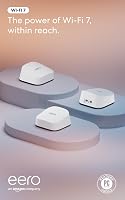
Each kit here suits a different buyer. The eero 7 2-pack is the best overall pick for most homes because it handles fast plans and large coverage at once.
The other two are better when the plan is slower or the home is larger.
The eero 7 carries two auto-sensing 2.5 GbE ports and wireless speeds up to 1.8 Gbps. Two units support 120+ devices across 4,000 sq. ft., so a busy household with smart home gear has room.
It's backward compatible with earlier eero units, so you can add a unit to a growing network. Multi-link operation is a Wi-Fi 7 feature that uses more than one band at once.
An optional eero Plus subscription adds security, ad blocking and parental controls.
Pick the eero 7 2-pack if your plan is above a gigabit or you want a kit that lasts through several upgrades. It's also the pick when your device count is high and the coverage is under 4,000 sq. ft.
The eero 6+ 3-pack: best for gigabit plans and wide coverage
The eero 6+ 3-pack covers up to 4,500 sq. ft. and supports 75+ devices. It handles internet plans up to a gigabit, so it fits most cable and fiber plans sold today.
It uses a 160 MHz radio channel for extra bandwidth, which gives the whole family room to work and stream at the same time. eero's TrueMesh software routes traffic to reduce drop-offs. The kit includes a smart home hub for compatible Thread and Zigbee devices, so you can skip separate hubs.
Setup runs through the eero app. Automatic updates keep the network current.
Pick the eero 6+ 3-pack if your plan is a gigabit or slower and your home runs 3,000 to 4,500 sq. ft. It's the better value when Wi-Fi 7 speed would go unused.
The Google Nest Wifi Pro 3-pack: best for large homes and Wi-Fi 6E devices
The Nest Wifi Pro 3-pack covers up to 6,600 sq. ft., the largest figure here. It's a tri-band system with 2.4 GHz, 5 GHz and 6 GHz bands, and Google says it's up to 2x faster than a Wi-Fi 6 router with 80 MHz channels.
The 6 GHz band only serves Wi-Fi 6E or later devices, and that band works indoors only. Older devices stay on 2.4 GHz and 5 GHz.
Google says the system adjusts performance on its own, prioritizes video calls and monitors the network for common issues.
It shows every connected device in the app. You can pause access for unknown devices and run a guest network with its own password.
Secure booting and software updates help protect the system from unauthorized software.
One trade-off: Nest Wifi Pro isn't compatible with earlier Google Wifi or Nest Wifi units. Moving to it means replacing the older kit rather than adding to it.
Pick the Nest Wifi Pro 3-pack if your home runs past 4,500 sq. ft. and you have newer phones and laptops that can use the 6 GHz band. It's also the pick when you want the app to flag network problems for you.
Should you choose Wi-Fi 6, 6E or 7?
Wi-Fi 7 is the fastest option but only pays off with a fast plan and newer devices. Wi-Fi 6 remains the sensible default for most homes on plans up to a gigabit.
Wi-Fi 7 adds multi-link operation, which sends data over more than one band at once. That helps when many devices compete for airtime.
The eero 7 also carries 2.5 GbE ports for plans above a gigabit.
Wi-Fi 6E adds the 6 GHz band to Wi-Fi 6. It's less crowded than 2.4 GHz and 5 GHz, but only devices that support 6E can use it.
The Nest Wifi Pro is the 6E kit here.
Wi-Fi 6 is the baseline. The eero 6+ uses a 160 MHz channel for extra bandwidth and handles gigabit plans without the newer radio.
Pick Wi-Fi 7 if your plan runs above 1 Gbps or you plan to keep the kit for years. Pick Wi-Fi 6 if your plan is a gigabit or slower and your devices are a few years old.
Pick Wi-Fi 6E if you own newer phones and laptops and want the less crowded band.
Do you need a modem or wired backhaul?
A mesh system still needs a modem to reach the internet. The main unit connects to the modem by Ethernet and acts as the router, so you replace your old router rather than running both.
Some mesh kits also work in bridge mode behind an existing router. That setup gives up the mesh's routing and security features, so most homes skip it.
If your modem is also a router, you have two choices. Put the modem in bridge mode and let the mesh handle routing, or keep both and run the mesh in bridge mode.
Bridging the modem is usually the cleaner setup.
Wired backhaul is optional. Mesh units link wirelessly by default.
A wired link between units gives faster and steadier speeds if your home already has network cables.
Buy a modem if you only have a router, and use wired backhaul only if cables already exist. For the full setup details, read do mesh wifi systems need a modem and does mesh wifi need to be wired.
How do you match a kit to your device count?
Count every device that stays connected, including smart plugs, cameras and doorbells. Each one takes a slot on the network, and mesh kits list a device limit for the whole kit, not each unit.
The eero 7 2-pack supports 120+ devices. The eero 6+ 3-pack supports 75+ devices.
Plan the Nest Wifi Pro around its three bands and 6,600 sq. ft. of coverage.
Add up phones, laptops, tablets, TVs, consoles, speakers, thermostats and plugs. A modern home often runs 40 to 80 devices without anyone noticing.
A home with a lot of smart home gear can pass 120.
Pick a kit whose device limit sits above your count with room to spare. A kit rated for 75 devices in a 60-device home has little margin for guests and new gear.
Device count also affects speed. When many devices stream or work at once, a kit with more bandwidth holds up better.
That's where Wi-Fi 6's 160 MHz channel and Wi-Fi 7's multi-link operation earn their keep.
Which mesh kit would we pick for each need?
The eero 7 2-pack is the kit we would pick for most homes. It handles 2.5 Gbps plans, covers up to 4,000 sq. ft. and supports 120+ devices, so it fits a wide range of buyers without buying extra units later.
Pick the eero 6+ 3-pack instead if your plan is a gigabit or slower and your home needs 4,500 sq. ft. of coverage. It costs less and includes a smart home hub.
Pick the Google Nest Wifi Pro 3-pack if your home runs past 4,500 sq. ft. and you own newer devices that can use its 6 GHz band.
So when you ask what wifi mesh system do i need, answer in this order: your plan speed, your device count, then your coverage. A kit that clears all three with a little margin is the one to buy.
Start with the eero 7 2-pack, then move down or up the list only when one of your three numbers points elsewhere.
Frequently asked questions
What WiFi mesh system do I need for a 3,000 sq. ft. home?
For a 3,000 sq. ft. home, start with a 2-pack or 3-pack rated above that coverage. The eero 7 2-pack covers up to 4,000 sq. ft., which leaves room for walls and furniture.
Compare each kit's square-foot rating to your floor plan rather than your home's total square feet.
How many mesh units do I need for my house?
Plan one unit for every 1,500 to 2,000 sq. ft. in a typical layout with drywall walls. Add a unit for long, narrow floors or rooms behind brick or concrete.
One unit covers many small apartments, while a 4,000 sq. ft. home often needs three.
Do I need Wi-Fi 7 mesh if my internet plan is under a gigabit?
No. Wi-Fi 6 mesh already handles plans up to a gigabit and is cheaper.
Wi-Fi 7 helps when your plan runs faster than 1 Gbps or you expect to keep the system through several internet upgrades.
Otherwise the extra speed goes unused.
Can I mix mesh units from different brands?
No. Mesh units only talk to units from the same brand and family. eero 7 works with older eero units, but a Google Nest Wifi Pro unit will not join an eero network.
Buy every unit from one system, or replace the whole kit.
Will a mesh system work with my current router?
You replace the router with the mesh system, so you do not run both. The main mesh unit connects to your modem and acts as the router.
Some mesh units also work in bridge mode behind an existing router, but that setup gives up the mesh's routing features.
Does a mesh system need a wired connection between units?
No. Mesh units link to each other wirelessly and route traffic around obstacles.
A wired link between units, called a backhaul, gives faster and steadier speeds if your home already has network cables.
Wireless is enough for most homes.